
Pixels to Inches Calculator
Introduction
A picture on a screen is measured in pixels. A picture on paper is measured in inches. When you need to move between the two, designing a poster, printing a photo, ordering a print or laying out a web page, you need to know how many pixels fit in an inch. That depends on the resolution, and it is not a fixed number, which is why guessing gives the wrong print size. This Pixels to Inches Calculator converts pixels to inches using the resolution you enter, so your design prints at the size you expect.
It is made for graphic designers, web designers, photographers, students and anyone who prepares images for print. You enter the pixel count and the dots per inch, and the calculator gives the physical size in inches at once.
What are Pixels and DPI?
A pixel is the smallest single point of colour on a screen or in a digital image. The width of an image in pixels tells you how many of those points it has across. DPI stands for dots per inch, and it is the resolution: how many pixels are packed into one inch when the image is printed or shown.
At 96 DPI, the standard for screens, one inch holds 96 pixels, so an image 192 pixels wide is 2 inches wide. At 300 DPI, the standard for print, one inch holds 300 pixels, so the same 192 pixels would be only 0.64 inches wide. The pixel count never changes: only the physical size changes with the DPI. That is why the same photo can look large on a screen and small on paper.
How to Use the Pixels to Inches Calculator
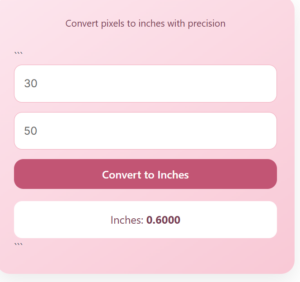
Follow these steps to convert pixels to inches:
- Enter the pixels (px) value, for example 192.
- Enter the DPI (dots per inch). The default is 96, the standard for screens.
- Click Convert to Inches to see the size in inches.
Use the DPI of the device or the print job, not a guessed number. For screen work use 96, for a standard print use 300, and for a large poster you may use 150. Enter the pixel value as a whole number, and check that you are converting width or height, not the two added together.
The Pixels to Inches Formula
The calculator uses this simple formula:
Inches = Pixels divided by DPI
To go the other way, multiply inches by DPI to get pixels:
Pixels = Inches x DPI
Both directions use the same resolution. If you change the DPI, the answer changes, even though the pixel count stays the same, so the DPI is the most important number in the conversion.
Worked Example
Take an image 192 pixels wide at a resolution of 96 DPI.
Divide the pixels by the DPI: 192 divided by 96 = 2.
So the image is 2.0000 inches wide, which is exactly what the calculator shows for these inputs. If you printed the same image at 300 DPI, it would be 192 divided by 300 = 0.64 inches wide, which is why print images need many more pixels than screen images.
When to Use It and Tips
Use this calculator when you are sizing an image for print, checking whether a photo is large enough for a poster, laying out a web page in physical units, or preparing a design for a printer who asked for a size in inches. It is also useful when a client gives a size in inches and you need to know how many pixels to supply.
- Always confirm which DPI your printer or screen uses before you convert.
- For print, 300 DPI is the usual standard, and below 150 DPI a print often looks soft.
- Do not upscale a small image to a large print size: the pixels are stretched, not added, so the result looks blurred.
- Convert width and height separately, using the same DPI for both.
For other measurements, the Unit Converter handles length, weight, temperature and more in one place. If you are measuring a curved shape instead, the Arc Length Calculator works out the length of a curve from its radius and angle.
FAQs
Q1: What does DPI mean?
DPI stands for dots per inch. It is the resolution: how many pixels fit in one inch when an image is printed or shown. A higher DPI packs more pixels into each inch, so the printed image is smaller and sharper.
Q2: What DPI should I use?
For most screens, 96 DPI is standard. For print designs, 300 DPI is the usual standard for a sharp result. Large posters are sometimes printed at 150 DPI, because they are viewed from further away.
Q3: Is this pixels to inches calculator free?
Yes, it is completely free to use and does not require registration or sign up. You can convert as many values as you like.
Q4: Can I use it on mobile?
Yes, the calculator is fully responsive and works on mobile phones, tablets and desktops.
Q5: Are the results accurate?
Yes, if you enter the correct DPI. The formula is exact: inches = pixels divided by DPI. The most common error is using the wrong DPI, so check it before you convert.
Q6: Can I convert inches back to pixels?
Yes. Multiply inches by DPI to get pixels. For example, 2 inches at 96 DPI is 2 x 96 = 192 pixels, which is the reverse of the worked example on this page.
Disclaimer
Disclaimer: This calculator is for educational and informational purposes only. It converts pixels to inches from the DPI you enter, and the result depends on that DPI being correct. Always confirm the resolution with your printer or designer before you order a print, because a wrong DPI gives the wrong physical size.