
Knowing how to use Excel to calculate age can save time and improve accuracy when working with employee records, school data, customer information, or personal spreadsheets. Instead of calculating ages manually, Excel formulas make the process fast, automatic, and error-free. This is especially useful when managing large amounts of data.
Excel also allows users to calculate age in different formats such as years, months, days, or even based on a specific date. Once you understand the formulas, updating age calculations becomes much easier and more efficient.
How to Find Age from Birth Date in Excel
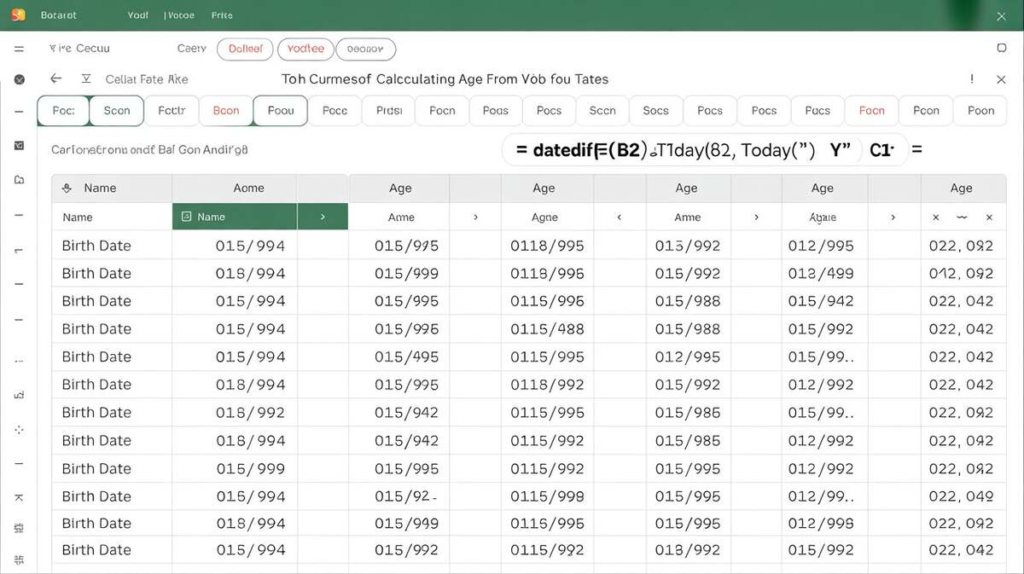
One of the most common methods is calculating age in Excel from DOB (Date of Birth). Excel can automatically calculate a person’s age using simple formulas and the current date. This helps avoid manual calculations that may become outdated over time.
Using formulas ensures the age updates automatically every year. This is particularly useful for HR management, student records, healthcare databases, and other spreadsheets that require accurate age tracking regularly.
Age Formula in Excel with Example
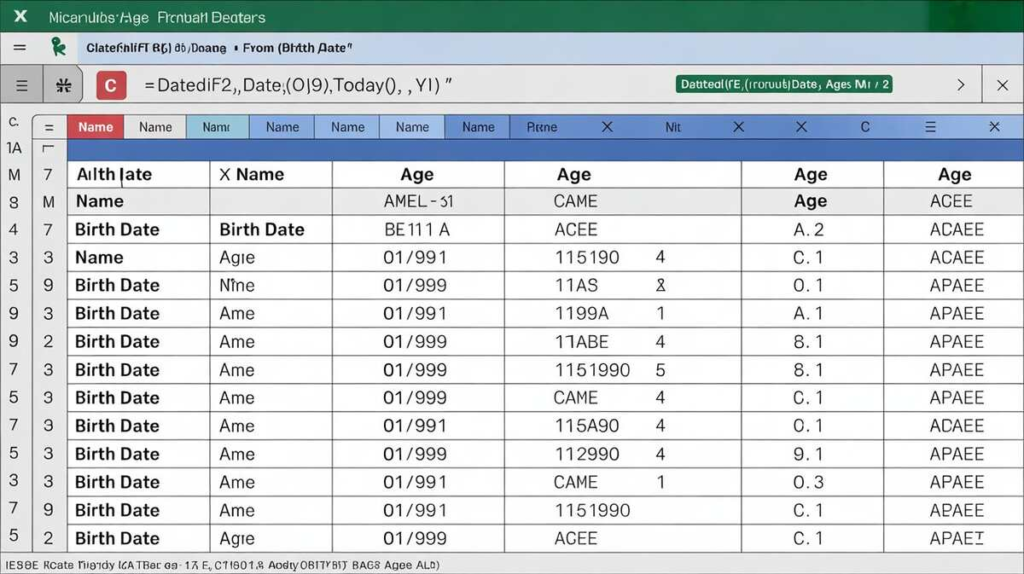
The most popular age formula in Excel uses the DATEDIF function. A basic formula looks like this:
=DATEDIF(A2,TODAY(),Y¨)¨=DATEDIF(A2,TODAY(),\”Y\”)=DATEDIF(A2,TODAY(),Y¨)¨
In this example, cell A2 contains the date of birth. The formula calculates the difference between the birth date and today’s date in years. This method is simple, accurate, and widely used for age calculation in Excel spreadsheets.
How to Calculate Age in Excel in Years and Months
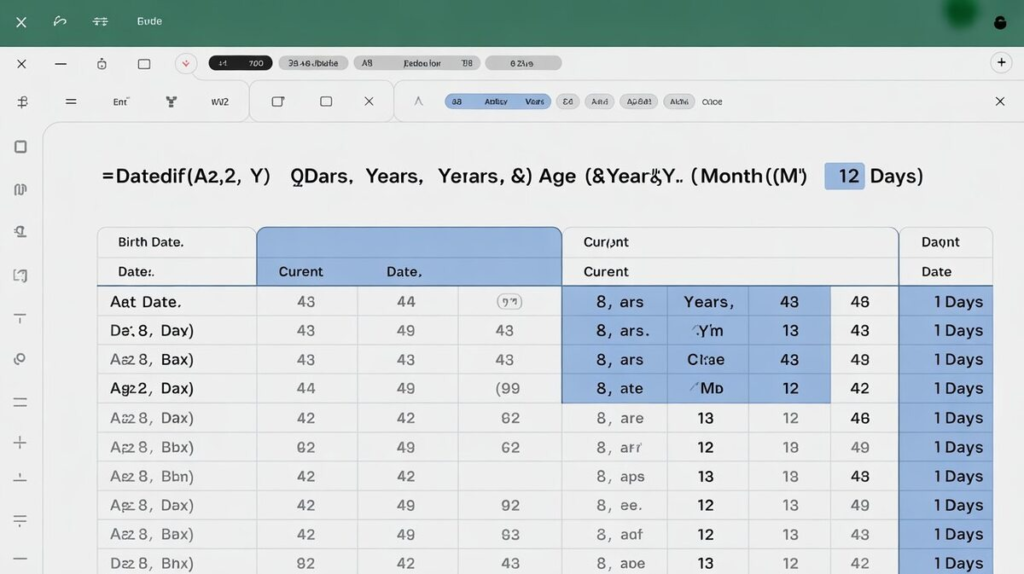
Sometimes calculating age only in years is not enough. Many users also want to calculate age in years and months for more detailed records. Excel can easily handle this using combined DATEDIF formulas for both years and months.
For example, this method is commonly used in schools, hospitals, and official documents where exact age information is required. It provides a more complete breakdown instead of only showing total years.
How to Calculate Age in Excel in Years, Months, and Days
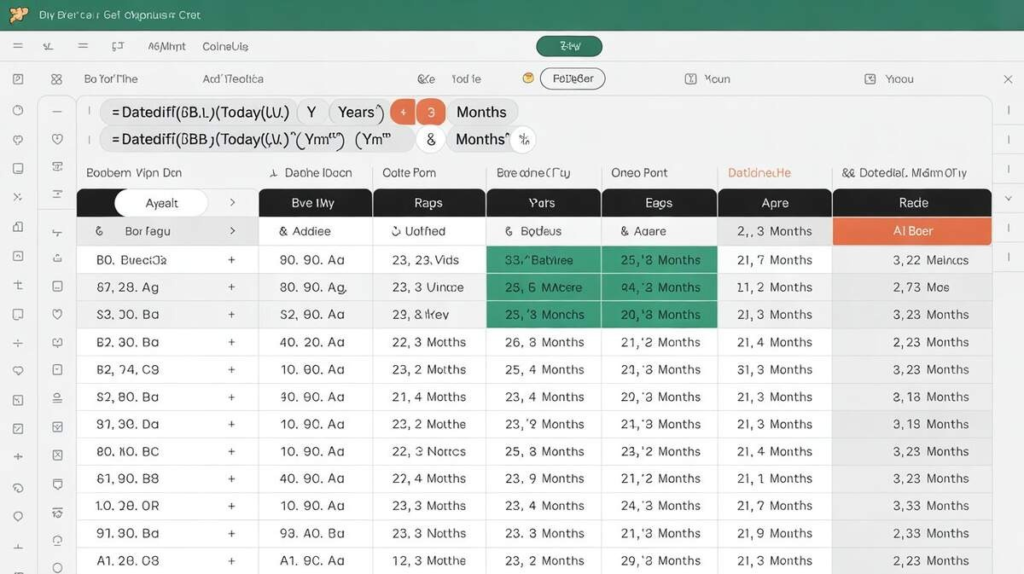
Excel also allows users to calculate age in years, months, and days for highly accurate reporting. This type of age calculation is useful for medical records, insurance documents, and legal paperwork where detailed age information matters.
By combining multiple formulas together, Excel can display the complete age format automatically. This creates professional and precise spreadsheets without requiring manual calculations.
Learn Age Calculation in Excel Easily
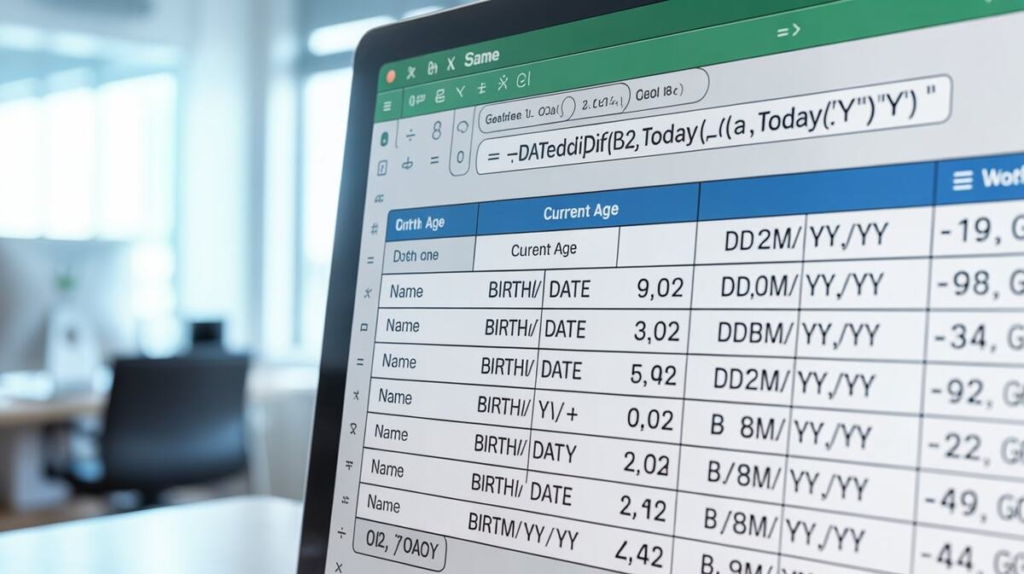
Many countries use the DD/MM/YYYY date format instead of MM/DD/YYYY. When calculating age in Excel in DD/MM/YYYY format, it is important to ensure the date cells are formatted correctly before applying formulas.
Incorrect formatting may cause formula errors or inaccurate calculations. Setting the proper regional date format in Excel helps maintain consistency and prevents confusion while working with international data.
How to Calculate Age in Excel as of a Specific Date
There are situations where you may need to calculate age based on a past or future date instead of today’s date. Excel allows users to calculate age as of a specific date by replacing the TODAY() function with a custom date reference.
This method is commonly used for historical reports, employee eligibility checks, and academic records. It provides flexibility while keeping calculations accurate and easy to update.
How to Calculate Age Between Two Dates in Excel
Excel can also calculate the difference between any two dates, not just birth dates. This feature is useful for project tracking, employment duration, service years, and event analysis. The same age calculation formulas can be adapted for many purposes.
Using date comparison formulas helps automate calculations and improves productivity. It also reduces the chances of mistakes caused by manual date counting.
How to Calculate Age in Excel Without DATEDIF
Although DATEDIF is popular, some users prefer methods without it because the function is hidden in newer Excel documentation. Alternative formulas using YEAR, MONTH, and DAY functions can also calculate age accurately.
These formulas provide more customization and compatibility in certain Excel versions. Understanding different methods helps users choose the most suitable option for their spreadsheets.
How to Perform Age Analysis in Excel
Age analysis in Excel involves organizing and evaluating age-related data for reporting and decision-making. Businesses and organizations often use Excel to analyze employee age groups, customer demographics, or student categories.
Using formulas, filters, charts, and pivot tables makes age analysis more efficient. Excel helps transform raw date-of-birth data into meaningful insights quickly and professionally.
Common Mistakes to Avoid When Calculating Age in Excel
One of the most common mistakes is incorrect date formatting, which can cause formulas to return errors. Another issue is manually typing ages instead of using formulas that update automatically over time.
It is also important to check leap years and regional date settings when working with international spreadsheets. Using proper formulas and formatting ensures more accurate and reliable calculations.
Final Thoughts on Using Excel to Calculate Age
Learning how to use Excel to calculate age is a valuable skill for both personal and professional tasks. Whether you need simple age calculations or advanced age analysis, Excel provides powerful tools that make the process easier and more accurate.
By using the right formulas and formatting methods, you can create automated spreadsheets that save time, reduce errors, and improve overall productivity. Even beginners can master age calculation in Excel with a little practice.
FAQs
Is there a formula in Excel to calculate age?
Yes, Excel uses formulas like DATEDIF to calculate age automatically based on a date of birth and the current date.
How do I calculate age in yyyy-mm-dd in Excel?
You can use combined date formulas and custom formatting to display age calculations in yyyy-mm-dd format within Excel spreadsheets.
What is the formula for age calculation?
One common formula is:
=DATEDIF(A2,TODAY(),Y¨)¨=DATEDIF(A2,TODAY(),\”Y\”)=DATEDIF(A2,TODAY(),Y¨)¨
This formula calculates age in years from a date of birth.
How to calculate age analysis in Excel?
Age analysis in Excel involves using formulas, filters, pivot tables, and charts to organize and evaluate age-related data efficiently.